
WhatsApp Messages Only Arrive When You Open The App? Android Background Settings Explained
If WhatsApp messages only arrive when you open the app, the first step is to work out whether the messages are delayed or their notifications are missing. Both problems can leave your phone quiet, but they require different checks.
You might lock your phone, put it aside, and hear nothing for an hour. Then you open WhatsApp and several conversations suddenly update. It is tempting to blame the connection, reinstall the application, or disable every battery-saving feature. A more useful approach is to identify exactly where the interruption occurs.
Android phones manage notification permissions, internet access and background activity through several separate controls. Manufacturers may add their own settings, which explains why instructions that work on one device can look unfamiliar on another.
This guide uses an illustrative scenario to show how to investigate the problem systematically. The process applies to readers worldwide; the relevant differences usually concern the phone model, software version and connection rather than the country.
Quick Answer: When WhatsApp messages appear only after opening the app, first distinguish delayed delivery from missing alerts. Check notification permissions, background data and app battery settings, then review manufacturer controls. Change one setting at a time and repeat a locked-screen test before deciding whether the problem is resolved.
The Scenario: A Quiet Phone And A Sudden Batch Of Messages
Imagine a reader named Alex who uses WhatsApp for family conversations, appointments and messages from colleagues.
While Alex is using the phone, everything seems normal. However, after the screen has been off for a while, the phone becomes unusually quiet. Opening WhatsApp reveals several unread messages, sometimes accompanied by a burst of alerts.
Alex is a fictional example used to explain the diagnostic process. This is not a report of a tested device or a promise that one setting will fix every phone.
Initially, Alex changes the notification sound. The problem continues. Next, Alex considers reinstalling WhatsApp, but pauses because the backup status is uncertain.
Instead, Alex writes down three observations:
- Whether the problem occurs on Wi-Fi, mobile data or both.
- Whether any notification appears before WhatsApp is opened.
- Whether every conversation is affected or only certain chats.
Those details help narrow the investigation. A phone that displays silent notifications has a different problem from one that produces no alert and only updates conversations after the app is opened.
Lesson: Describe the behaviour precisely before choosing a solution.
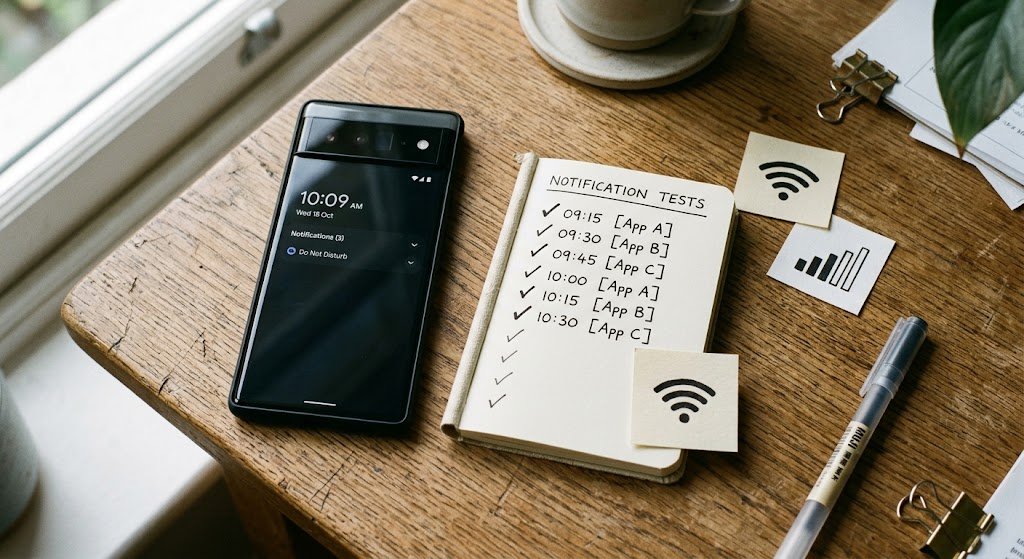
Phase One: Identify What “Messages Arrive Late” Actually Means
Alex begins by separating message delivery from notification presentation.
A message notification has several visible parts. It may appear on the lock screen, create a banner, remain in the notification panel, make a sound or produce vibration. The absence of one part does not establish that the message itself arrived late.
For example, a phone may receive a notification without showing its contents on the lock screen. A conversation may also be muted while other conversations behave normally.
There is another complication: the time displayed beside a message is not, by itself, a reliable record of when the receiving phone became aware of it. Seeing an earlier message timestamp after opening WhatsApp does not fully explain what happened in the background.
Alex asks a trusted contact to send a short test message while the phone is locked. Before opening WhatsApp, Alex checks the lock screen and notification panel.
If an alert is already present, the next checks concern visibility or sound. If nothing appears until the application opens, background delivery remains a possibility.
How to confirm the observation: Repeat the test under similar conditions. An occasional delay should not be diagnosed from one message.
Lesson: Investigate what the phone actually displays, rather than relying only on the impression that messages arrived together.
Phase Two: Check Notification Permission And Alert Categories
Alex opens WhatsApp’s Android app information screen. A common way to reach it is to press and hold the app icon and select App info, although the wording can vary.
Inside the notification section, Alex checks whether notifications are allowed.
This system-level permission matters because preferences inside WhatsApp cannot compensate for an operating-system setting that prevents alerts from appearing.
Where the phone provides separate notification categories, Alex reviews the categories relevant to messages and groups. A category can behave differently from the app’s general notification setting.
Alex also checks whether alerts are allowed on the lock screen and whether banners have been disabled. These controls affect how a notification is presented.
Next comes a narrower check: the conversation itself. If only one group is quiet, its mute setting deserves attention before any phone-wide change.
Do Not Disturb and scheduled focus settings should also be reviewed when the symptom concerns sound or alert visibility.
How to confirm the change: Send another message with WhatsApp closed. If the notification appears but remains silent, investigate sound settings rather than continuing to treat the problem as delayed delivery.
Lesson: Match the scope of the fix to the scope of the problem.
Phase Three: Compare Wi-Fi And Mobile Data Separately
Alex now tests the two connections independently.
First, Alex uses Wi-Fi with mobile data switched off. Then Alex repeats the test using mobile data with Wi-Fi switched off. WhatsApp remains closed during both tests.
The aim is to discover whether the symptom follows a particular connection.
If messages appear normally on Wi-Fi but fail on mobile data, the next useful checks include mobile background access and Data Saver settings. If the problem happens only on one Wi-Fi network, investigate that connection before changing unrelated battery controls.
Neither result proves the cause. It simply provides direction.
Alex also considers whether the connection is genuinely working. A Wi-Fi symbol can remain visible even when a network has no usable internet access. Likewise, a mobile signal indicator does not establish that the data connection is functioning normally.
A browser test can provide additional context, but successful browsing while the phone is active does not prove that WhatsApp has the same access while the screen is off.
How to confirm the pattern: Repeat the comparison at another time. Record whether the delay consistently follows the same network.
Lesson: Connection-specific behaviour is useful evidence, but it should be repeatable before you rely on it.
Phase Four: Review WhatsApp Background Data Settings
Because Alex’s problem is more noticeable on mobile data, background access becomes the next area to inspect.
In WhatsApp’s app information, Alex looks for a section named Data usage, Mobile data, or Mobile data and Wi-Fi. Different phones arrange these controls differently.
Where a background-data option is available, Alex checks whether WhatsApp is permitted to use it.
The distinction between active and background use matters. An application may work while open even when its background access is limited. That can make the connection appear healthy during ordinary use while alerts fail when the phone is put aside.
Alex also reviews Data Saver. Some devices offer an app-specific exception, sometimes described as unrestricted data usage.
The goal is a targeted change. Allowing the affected messaging application appropriate access is more useful than removing restrictions from every installed app.
Before changing anything, Alex records the original setting. If the adjustment produces no improvement, it can be reversed.
How to confirm the change: Repeat the mobile-data test with the screen locked. Do not judge the result while WhatsApp is already open.
Lesson: Successful foreground use does not settle whether background access is working.
Phase Five: Examine Battery Restrictions Carefully
Alex next checks the battery controls applied to WhatsApp.
Battery management can influence how applications behave when they are not being actively used. However, that does not mean every delayed alert is caused by battery optimization.
Inside app information, Alex looks for Battery, App battery usage, or an equivalent section. Available options may include optimized, restricted or less restrictive modes.
If WhatsApp has been placed in an explicitly restricted mode, Alex considers changing that setting and testing the result.
Alex also performs a comparison with system Battery Saver temporarily disabled. This helps identify a possible relationship without assuming that Battery Saver must remain off permanently.
Only one control is changed at a time.
The phone’s behaviour over the next day matters too. Reliable notifications are the objective, but a change that substantially increases battery consumption deserves further review.
Readers should avoid instructions that recommend disabling every power-management feature without first checking whether a narrower adjustment works.
How to confirm the change: Test after the screen has been off long enough to resemble the original problem.
Lesson: Use battery settings as a controlled experiment, then assess both notifications and battery life.
Phase Six: Follow The Samsung Branch If Sleeping-App Controls Are Present
On a Samsung phone, the investigation may include manufacturer-specific sleeping-app controls.
The reader can search Settings for terms such as Sleeping apps, Deep sleeping apps, or Background usage limits. Availability and menu placement depend on the device and software version.
If WhatsApp appears in a restrictive list, review whether that placement suits an application used for time-sensitive communication.
Some devices also provide a way to exclude selected applications from sleeping. Check the options actually available rather than following screenshots from a different software release without adjustment.
These controls should be reviewed alongside notification settings, not treated as a replacement for them.
For example, removing an app from a sleeping list will not necessarily restore a notification category that has been disabled separately.
How to confirm the change: Repeat the locked-screen message test, then test again after a longer idle period. Check Wi-Fi and mobile data if both were previously affected.
Lesson: Manufacturer controls add another layer to the investigation, so record exactly which setting was changed.
Phase Seven: Follow The Redmi, Xiaomi Or POCO Branch
On some Redmi, Xiaomi and POCO devices, readers may encounter controls labelled Autostart or Background autostart.
Search the phone’s Settings for those terms rather than assuming every model uses the same path.
Where WhatsApp has an autostart permission, review whether it is enabled. Then inspect app-specific battery controls separately.
These settings describe different aspects of application behaviour. Finding one permission enabled does not establish that every relevant restriction has been removed.
Alex’s scenario also highlights the importance of software-version details. A tutorial written for an older interface may describe menus that no longer appear in the same location.
If a setting cannot be found, consult the options on the actual device. Do not install an unfamiliar “notification booster” simply because an online tutorial uses different labels.
How to confirm the change: Repeat the usual test and check notifications after a normal phone restart.
Lesson: Device-specific guidance should be treated as a branch of the diagnostic process, not a universal Android recipe.
Phase Eight: Consider App Pausing And Phone-Management Tools
Alex also checks whether the application has been paused or treated as unused.
This possibility is more relevant on a spare phone or an installation that has not been opened for a long time. It is less persuasive when WhatsApp is used frequently throughout the day.
Where the device offers an option such as Pause app activity if unused, Alex reviews its status.
Next, Alex considers tools that may affect network access or background activity. These could include a third-party battery manager, firewall, VPN or phone-cleaning application.
Their presence alone proves nothing.
Alex temporarily pauses one relevant tool, repeats the test and restores it if there is no improvement. Disabling several tools together would make the result harder to interpret.
On a work-managed phone, restrictions may be controlled by an administrator. In that situation, the appropriate next step is to report the symptom and test results rather than attempt to bypass enforced settings.
Lesson: Investigate additional software through comparison, without assuming it must be responsible.
Phase Nine: Update And Restart Before Removing The App
Alex checks for an available WhatsApp update through the official app store and reviews the phone’s software-update status.
A normal restart is another reasonable step, especially if the problem began after a temporary malfunction.
These actions should still be followed by the same controlled test. Opening WhatsApp successfully after a restart does not establish that background notifications are working.
Reinstallation is a larger intervention. Before considering it, Alex checks whether a usable backup exists and whether the required account and backup credentials are accessible.
Clearing temporary cache and clearing application storage are different actions. The latter can remove local app information, so the labels should be read carefully.
Deleting data without understanding the recovery situation can create a second problem while the first remains unresolved.
Repeated reinstallation also makes diagnosis difficult because it changes several things at once.
How to confirm the result: Test with the phone locked after the update or restart, rather than stopping once the application opens normally.
Lesson: Preserve access to your information before taking steps that remove stored app data.
Phase Ten: Verify The Result During Normal Use
Alex finishes by repeating the test under everyday conditions.
- Open WhatsApp once, then return to the home screen.
- Lock the phone.
- Ask a trusted contact to send a message.
- Check for an alert without opening WhatsApp.
- Repeat using the other connection.
- Test again after a longer idle period.
- Monitor battery behaviour during normal use.
This sequence provides a practical comparison. It does not guarantee that an intermittent issue has disappeared permanently.
If several messaging apps show the same behaviour, the investigation should broaden to the device or connection. If only one WhatsApp conversation is affected, return to that chat’s settings.
When seeking support, include the phone model, software version, affected connection, approximate delay and changes already tested. A precise description is more useful than saying that notifications are broken.
Lesson: A convincing fix should improve the conditions that originally caused the complaint.
What The Scenario Shows
The most useful starting point is a clear description of the failure. Once delayed delivery has been separated from hidden or silent alerts, notification permissions, background data and battery controls can be tested in a sensible order. Keep changes supported by repeated observations and revisit any adjustment that causes an unacceptable battery impact.
Key Takeaways
- A quiet phone does not automatically mean messages arrived late.
- Check conversation settings before making broad changes.
- Compare Wi-Fi and mobile data independently.
- Review background data and battery restrictions separately.
- Follow manufacturer-specific branches only where relevant.
- Protect your backup and account access before reinstalling.
- Test one change at a time.
Frequently Asked Questions
Can A Message Timestamp Prove When My Phone Received It?
A timestamp alone does not fully describe notification delivery on the receiving phone. Use a controlled test and observe whether an alert appears before opening WhatsApp.
Will A Different Notification Sound Fix Delayed Messages?
Changing the sound can help when alerts are arriving silently. It does not address a problem in which the phone produces no notification until the app is opened.
Should Every App Be Allowed Unrestricted Background Activity?
No broad change is necessary for this investigation. Focus on the affected application, make a targeted adjustment and monitor whether it improves the problem.
What If I Use WhatsApp And WhatsApp Business On The Same Phone?
Check the settings for the application that is affected. The two installations can have separate permissions, notification preferences and battery controls.
Why Does The Problem Return After An Apparently Successful Test?
An intermittent issue may depend on idle time, connection changes or scheduled phone settings. Repeat tests under the original conditions and keep a short record instead of relying on one successful alert.

1 Comments